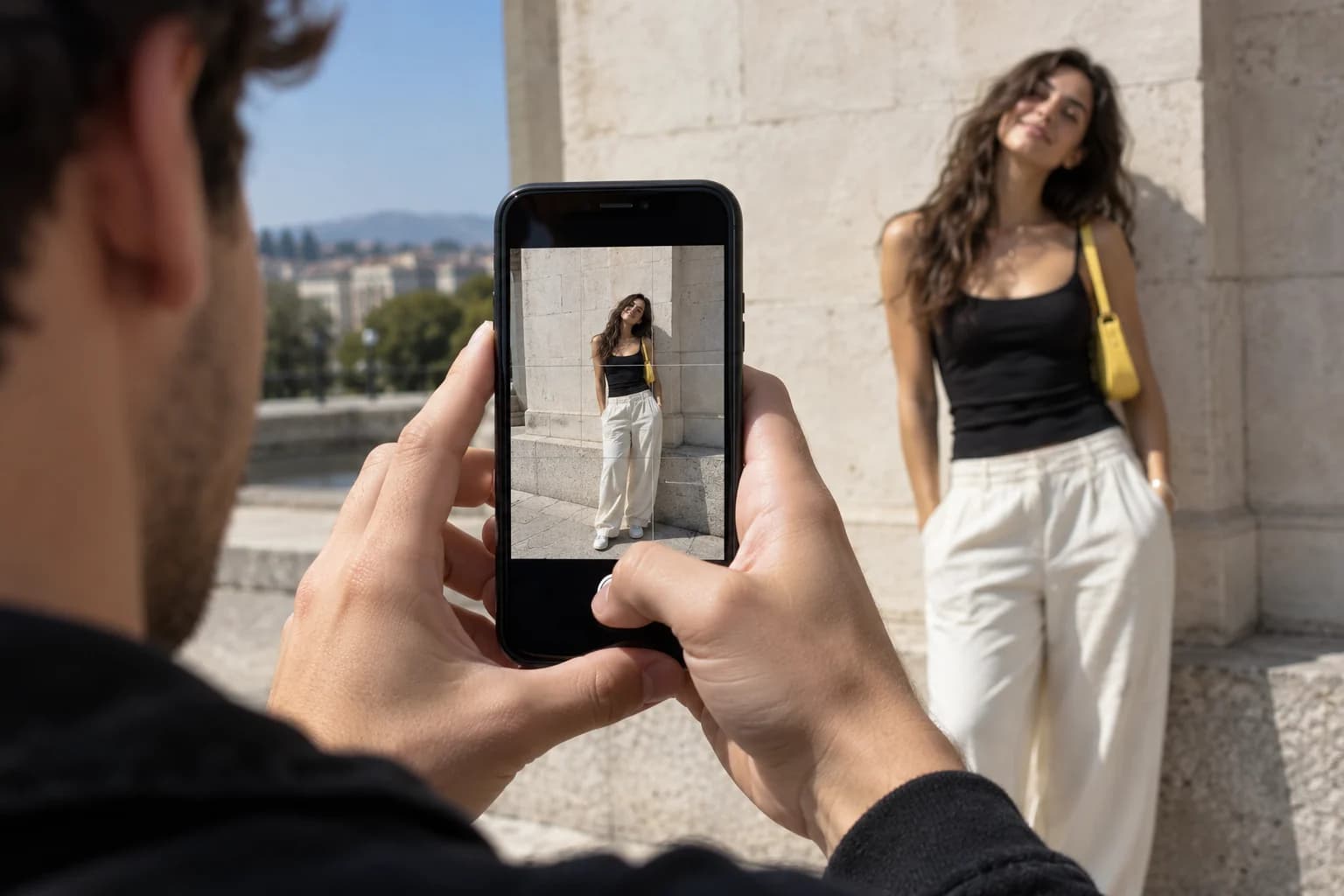
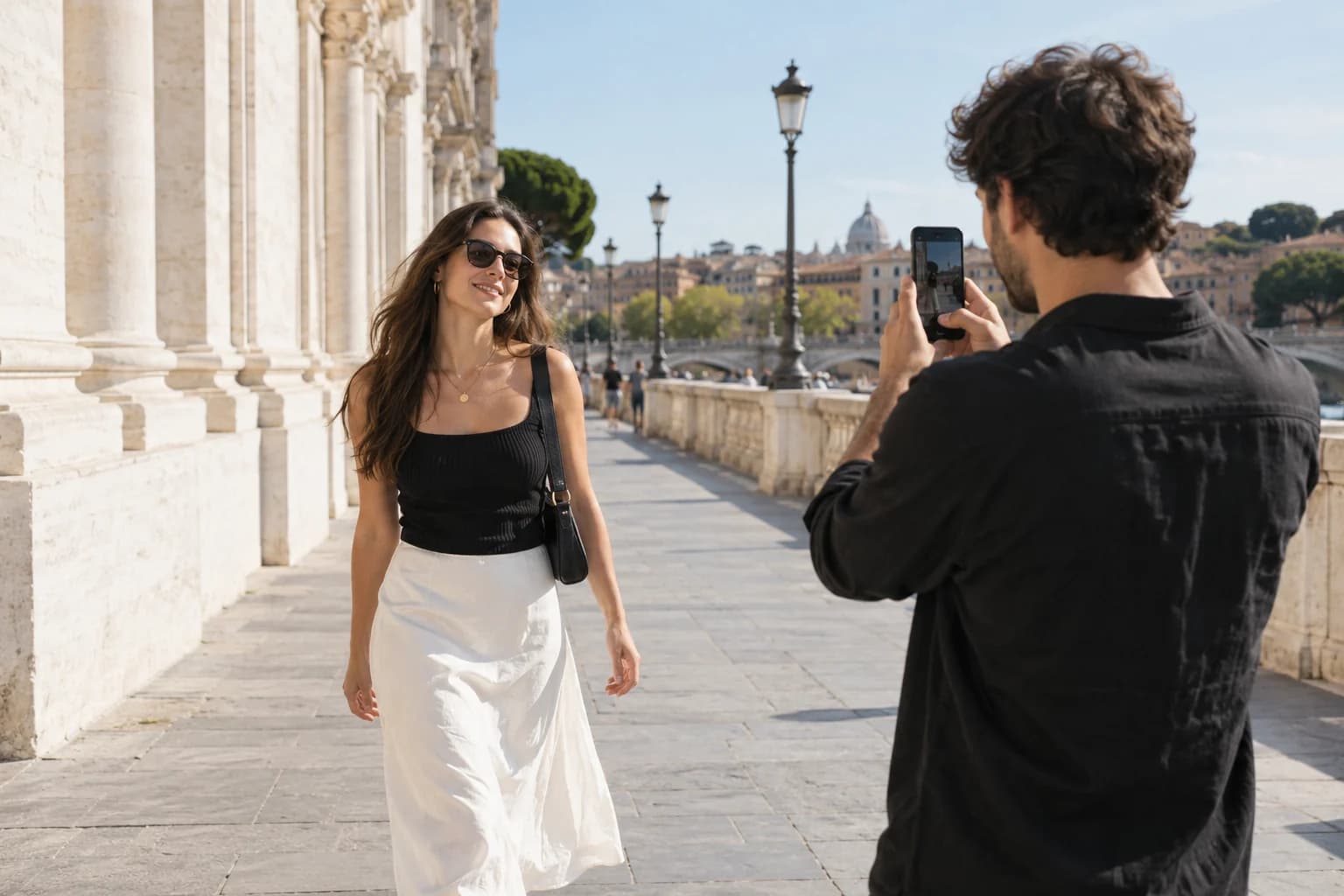
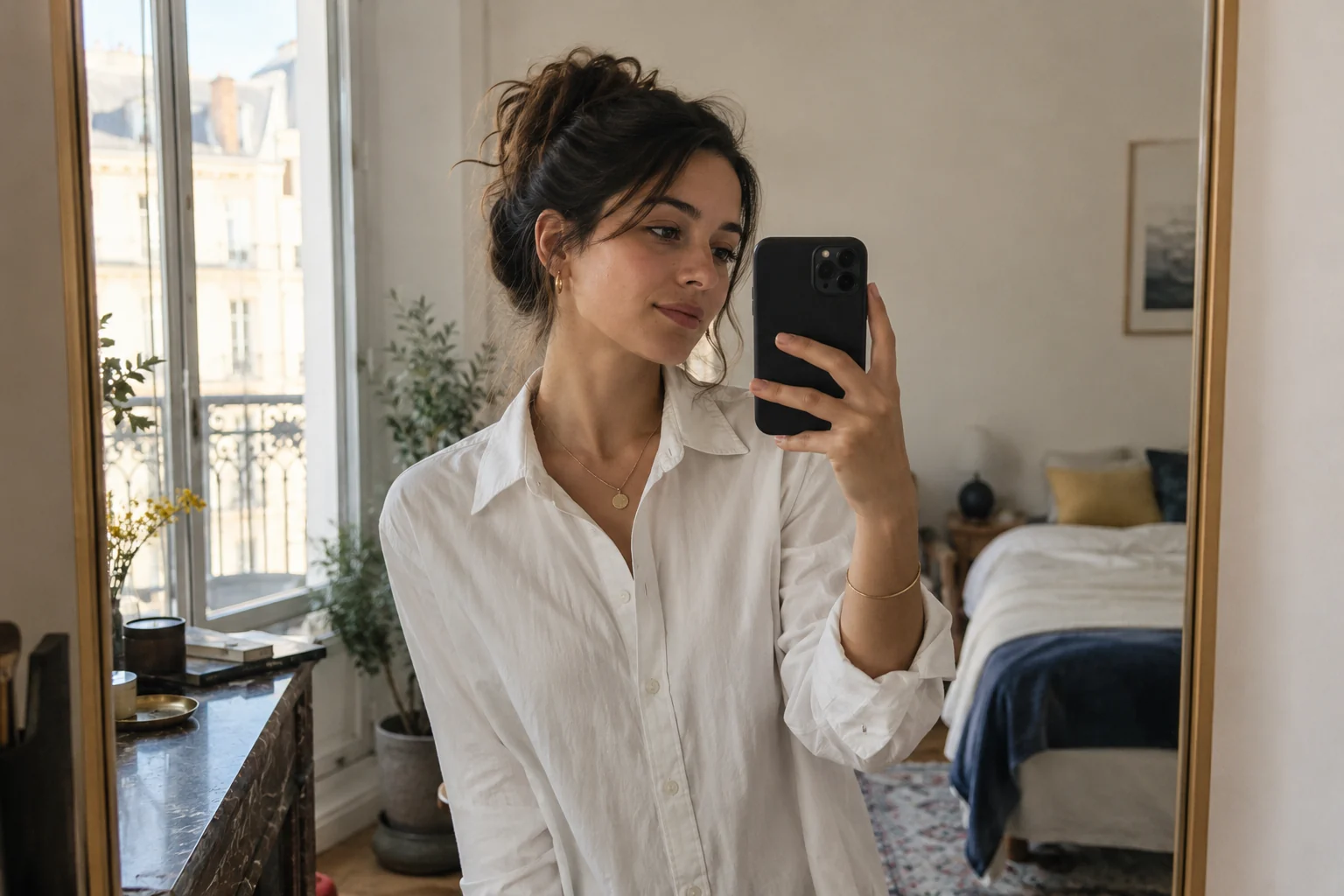
Portrait mode or Photo mode: which should you use for people?
Choose between native iPhone Portrait and Photo modes based on movement, light and background detail, and check hair and face edges before keeping the shot.
By InstaBF · · 3 min read
Start here
Use Photo mode as a reliable starting point for movement, groups and scenes where the surroundings matter. Try Portrait mode for a more isolated subject, then inspect the depth effect rather than assuming more blur means a better portrait.
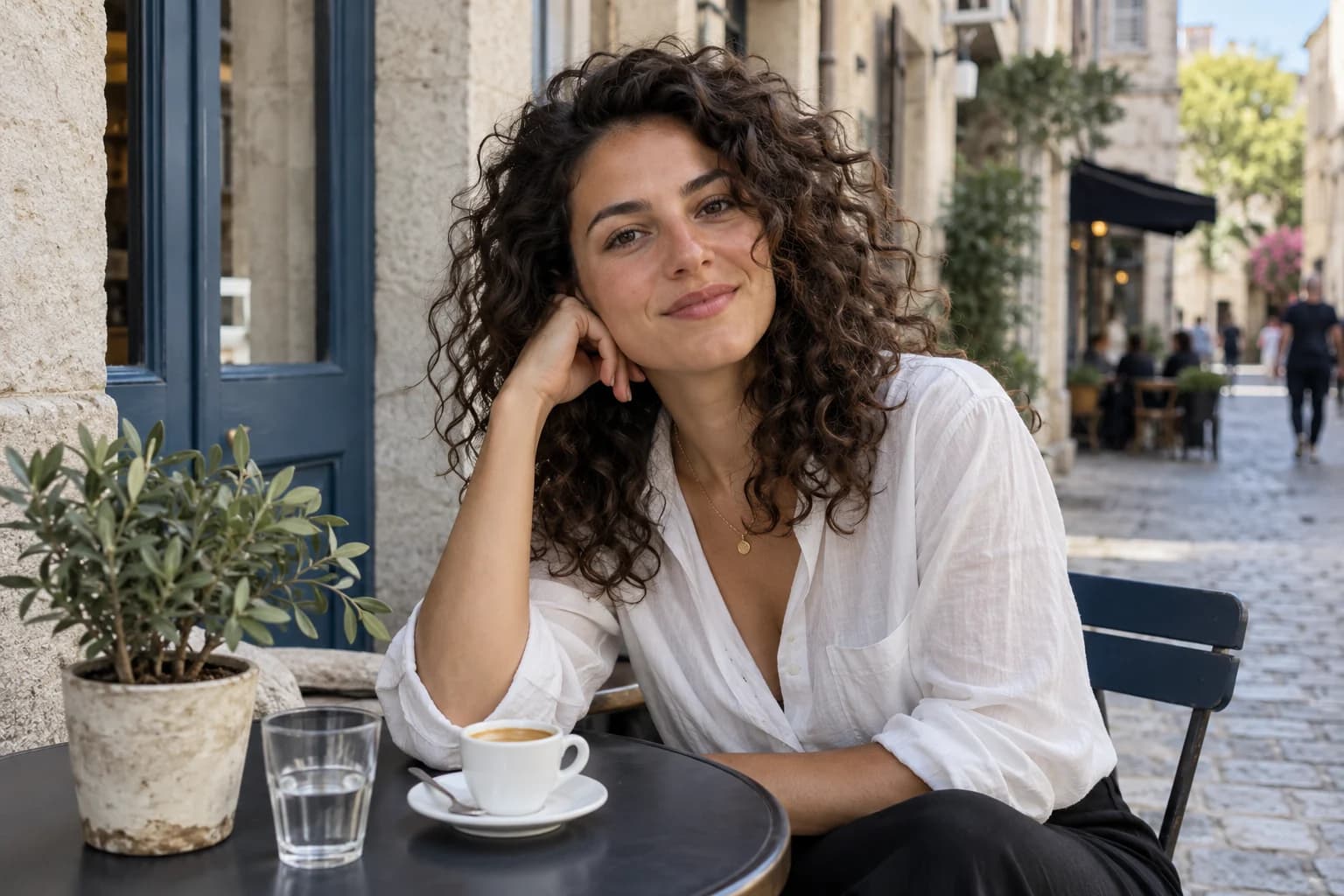
Choose the job you want the background to do
A portrait can show a person in a place or separate them visually from that place. If the café, landmark or outfit setting is part of the memory, begin in Photo mode and compose it deliberately. A sharp background is not automatically a mistake.
Portrait mode adds a depth-of-field effect that can make the background appear more blurred. Use it when that effect supports the picture. It is an aesthetic option, not a requirement for any photograph containing a person, and it does not replace choosing useful light or a clear frame.
Make a like-for-like comparison
Ask your subject to stay in the same place and take a Photo-mode version first. Switch to Portrait, follow the on-screen distance or lighting prompts and take a second version from a similar viewpoint. Available portrait lenses and controls depend on the iPhone model.
Compare the composition as well as the blur. If switching mode changes the crop, adjust your camera position thoughtfully and notice that the viewpoint has changed too. Do not ask the person to keep a strained expression while you explore menus; settle the controls before starting the short set.
Inspect hair, glasses, hands and foreground objects
A strong background effect can look distracting around curls, glasses, a hand near the face or a cup between the camera and person. Enlarge the result enough to inspect those boundaries. Look for a picture you enjoy as a whole, not only the softest background.
Where your phone and photo support it, the Photos editor can adjust the portrait depth effect afterward. Try a gentler amount of blur and compare it with the original Photo-mode frame. If the effect still looks distracting, keep the simpler capture rather than trying to force every image into the same style.
Change the choice when light or activity changes
For people walking, several faces at different distances or a dim restaurant, Photo mode is a useful starting comparison. A paused individual portrait in comfortable light is an easier place to explore Portrait mode. Night mode Portrait is supported only on specific models, so check your phone rather than assuming it is available.
These are native iPhone camera choices. InstaBF’s framing and reference tools help communicate a still-photo composition; they do not imply that every native Portrait control exists inside the app. Pick the camera process that fits the scene, then give your photographer one clear crop and action.
Before you hand over the phone
- Decide whether the background matters to the story.
- Take a Photo-mode comparison first.
- Check the depth effect around detailed edges.
- Confirm which controls your model supports.
Common questions
Does Portrait mode always make people look better?
No. Background blur is a stylistic effect. The light, viewpoint, expression and purpose of the photo still determine whether it is a result you enjoy.
Can I reduce the portrait blur after taking the photo?
On supported portrait photos and models, use the depth controls in Photos to adjust the background effect. Check the controls available for the particular image on your phone.
Sources and further reading
Camera features are described in the sources below. Shooting setups and posing suggestions are InstaBF editorial guidance.
Keep learning: Help your boyfriend take better photos of you. Using a specific phone? See which lens to use on your iPhone.